
How Should Armrests Be Positioned on an Ergonomic Chair?
Proper ergonomic chair armrest positioning starts with your body, not a fixed measurement. The armrests should support your arms while your shoulders remain relaxed, your elbows stay reasonably close to your torso, and your hands can reach the keyboard and mouse without unnecessary reaching.
Set the armrests close to the natural height of your relaxed elbows or forearms. Then adjust their width so your elbows can remain near your sides, their depth so the pads do not push you away from the desk, and their pivot so the support follows your forearms naturally. For typing, the armrests should not make your shoulders rise. For mouse work, they should not restrict normal arm movement. If the armrests hit the desk before the chair can move close enough to the keyboard, change the armrest or desk relationship instead of forcing your body into a compromised position.
Quick Reference Specification: Ergonomic Armrest Positioning Parameters
| Adjustment Vector | Biomechanical Target Setting | Primary Ergonomic Objective |
|---|---|---|
| Vertical Height (Z-Axis) | Equal to natural relaxed elbow resting height | Relieves trapezius load without causing shoulder shrug or cervical strain |
| Horizontal Width (X-Axis) | Inline with natural lateral humeral drops | Prevents shoulder abduction; keeps elbows tucked within 15° of the torso |
| Horizontal Depth (Y-Axis) | Retracted behind desk edge line | Eliminates desktop collision to ensure proper keyboard reach without leaning |
| Rotational Pivot (Angle) | 10° to 15° inward convergence | Supports forearm pronation angle toward compact keyboard home rows |
| Task Clearance | Unobstructed mouse sweep arc | Ensures full lateral mouse gliding without elbow or forearm pad friction |
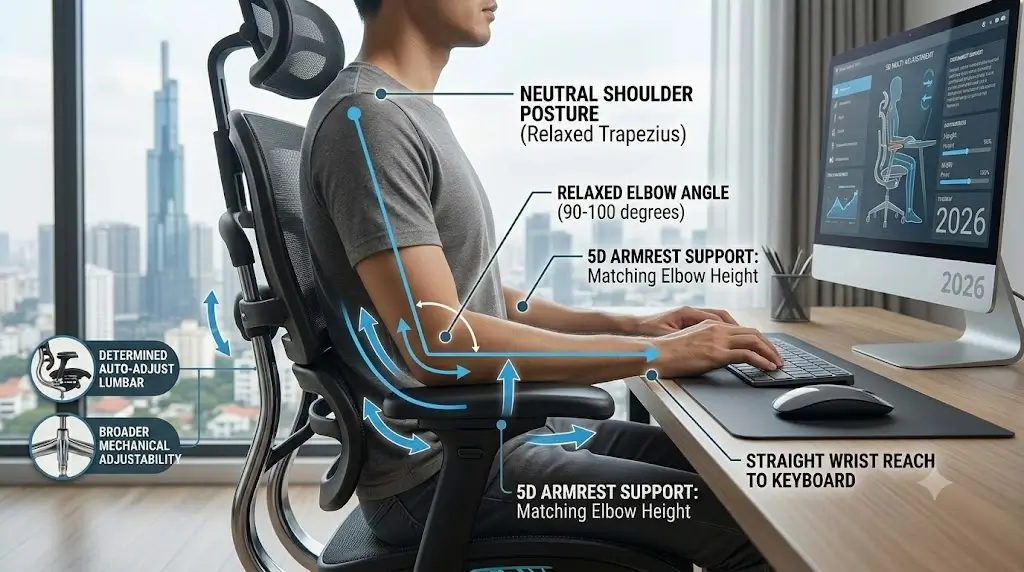
What Is the Ideal Ergonomic Armrest Position?
Biomechanical positioning rules dictate that armrest pads support forearm weight without elevating the trapezius muscles.
There is no single universal armrest height that fits every person. Arm length, torso proportions, chair height, seat depth, desk height, keyboard position, and the design of the armrest all affect the final setting.
The better approach is to establish a neutral working position first and then adjust the armrests around it. Your shoulders should remain relaxed, your elbows should not be forced far away from your torso, and your arms should be able to move between the keyboard, mouse, and other desk tasks without fighting the chair. Proper upper-body alignment works hand-in-hand with lumbar stability, as outlined in our guide to the best ergonomic office chairs for lower back pain.
An ergonomic armrest is therefore best understood as an optional support surface. It should reduce the amount of unsupported arm weight you need to manage when you want support, but it should not force you to keep your arms in one rigid position.
Relax your shoulders, bend your elbows naturally, and bring your arms toward your normal keyboard position. Raise the armrests only until they meet your arms without causing your shoulders to lift. Then adjust width and depth so the pads do not force your elbows outward or prevent the chair from getting close enough to the desk.
How High Should Chair Armrests Be?
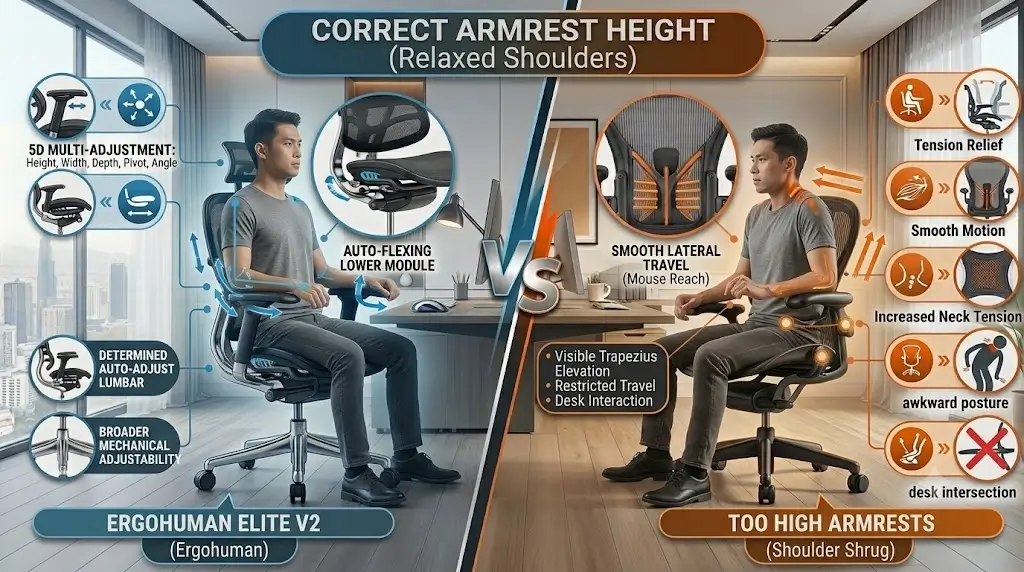
Proper vertical armrest adjustment matches the relaxed height of the elbows to eliminate shoulder elevation.
The correct armrest height is the height at which the arm pads can support your arms without requiring your shoulders to shrug upward. This makes relaxed shoulder position more useful as a reference than a fixed number of inches.
Start with your chair height correctly established. Your feet should have stable support, and your knees and hips should be positioned comfortably. If you use an aftermarket cushion from our best ergonomic seat cushions for office chairs guide, factor in the added 2–3 inches of lift before calibrating armrest height. Once your basic sitting height is set, relax your arms and adjust the armrests upward gradually.
Stop when the pads meet your forearms or the area around your elbows without lifting the shoulders. If you feel your shoulders rise as soon as your arms contact the pads, lower the armrests.
| Armrest height | Typical sign | Adjustment |
|---|---|---|
| Too high | Shoulders rise when arms are supported. | Lower the armrests. |
| Too low | Arms have to drop noticeably to contact the pads. | Raise the armrests gradually. |
| Useful starting position | Shoulders remain relaxed and the arms can rest naturally. | Fine-tune using the keyboard and mouse. |
| Correct height but desk collision | Armrests hit the desktop. | Adjust armrests, desk, or keyboard surface. |
How Wide Should Armrests Be?
Lateral width calibrations position the arm pads close to the ribcage to prevent humeral abduction.
Armrest width determines how far your elbows sit from the centerline of your body. This adjustment is particularly important because an armrest can have a correct vertical height while still being horizontally misplaced.
If the armrests are too wide, your elbows may move outward simply to reach the pads. That can also increase the distance between your hands and the keyboard.
If they are too narrow, the pads may press against your elbows, thighs, or the sides of your torso. The useful setting is the one that gives your arms room without requiring the elbows to spread unnecessarily.
Do not choose the widest armrest setting just because it provides more physical space. The useful width is determined by where your elbows naturally fall when your shoulders are relaxed and your hands are positioned for actual desk work.
How Far Forward Should Armrests Be?
Horizontal depth adjustments retract the arm pads to prevent mechanical collisions with the desk edge.
Armrest depth determines how far the support pads extend toward the desk. A good depth setting provides useful forearm support without pushing your torso away from the keyboard.
This is one of the most overlooked ergonomic chair adjustments. A user can have a comfortable armrest height but still develop a poor workstation position because the armrests physically collide with the desk.
If you cannot move your chair close enough to the keyboard because the armrests hit the desk, the armrests are too far forward for that particular workstation unless the desk itself can be adjusted.
If the armrests force you to sit farther away from the keyboard, move them backward, lower them, rotate them, or move them temporarily out of the way. A support surface is not useful if it creates a more significant workstation-fit problem.
What Angle Should Armrests Be?
Rotational pivot mechanisms angle the pads inward to parallel natural forearm convergence toward the keyboard.
Pivoting armrests allow the pads to rotate relative to the chair. This can be useful because your forearms do not occupy exactly the same angle during every task.
For keyboard work, a slightly inward orientation may allow the pads to follow the direction of the forearms toward the keyboard. For extreme pivot customization (such as handheld gaming or mobile device use), models like the Hbada E3 Pro review feature 720° omni-directional rotation that folds inward in front of the chest.
Place your hands where they normally sit on the keyboard. Relax your shoulders and elbows. Rotate the arm pads until they sit underneath the arms without pushing the elbows inward or outward. Then move to the mouse and confirm that the pads do not restrict the larger movement required for pointing.
Best Armrest Position for Typing
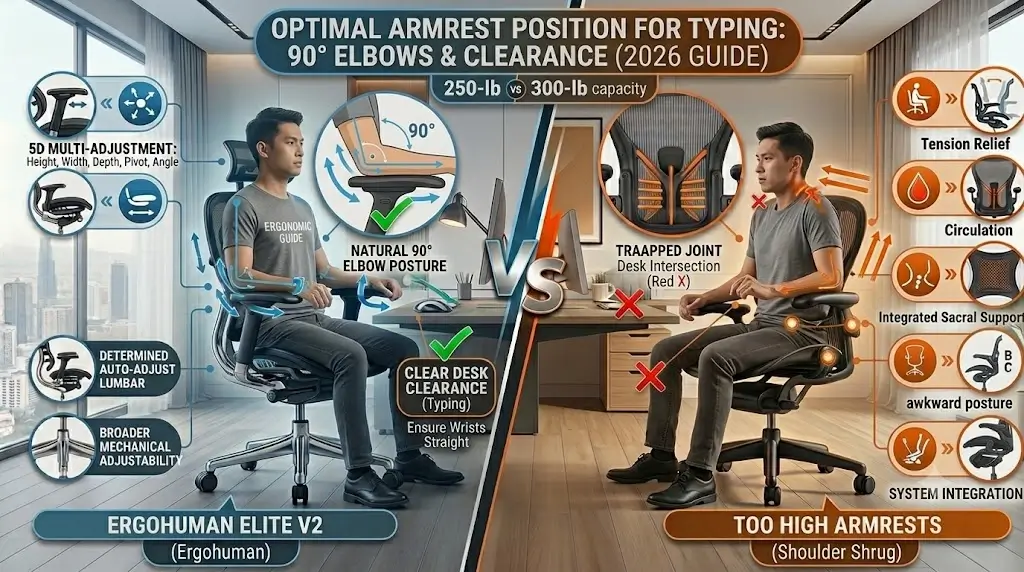
Typing ergonomics require parallel forearm alignment with the keyboard to maintain neutral wrist angles.
Keyboard work is a useful test because it exposes problems with armrest height, width, depth, and desk clearance at the same time.
1. Establish your normal seated position
Sit fully back in the chair rather than sitting on the front edge of the seat. Your armrest position should be evaluated from the position you actually intend to use.
2. Relax your shoulders
Let your shoulders assume their natural position. Do not deliberately shrug them upward or force them downward while making the adjustment.
3. Place your hands over the keyboard
Move your hands into the position you actually use for typing. This is more useful than adjusting the armrests while your hands are hanging beside the chair.
4. Set armrest height
Raise the pads until they lightly support your forearms without causing shoulder elevation.
5. Set width
Position the pads so your elbows can remain reasonably close to your torso.
6. Set depth
Make sure the armrests do not prevent the chair from getting close enough to the desk.
Best Armrest Position for Mouse Use
Dynamic mousing demands unrestricted forearm glide to prevent repetitive wrist deviation.
Mouse use often requires more lateral movement than typing, so the armrest position that feels ideal for the keyboard may not be ideal for the mouse.
- Keep the mouse close enough that you do not repeatedly reach forward.
- Make sure the shoulder does not rise when using the mouse.
- Confirm that the elbow can move naturally.
- Make sure the armrest does not repeatedly collide with the forearm.
- Test the position using actual mouse movement rather than judging it from a static seated posture.
Armrests and Desk Height: Why They Must Be Adjusted Together
Workstation interaction models show chair cylinder height and desk surface clearance govern overall upper-body reach.
An ergonomic chair cannot be optimized independently from the desk. Armrest position, chair height, keyboard height, and desktop height interact directly. Check your proportions against our ergonomic desk and chair height chart to establish baseline measurements for your height.
| Problem | First thing to check | Better response |
|---|---|---|
| Armrests hit the desk | Armrest height and depth | Lower/reposition the armrests or adjust desk clearance. |
| Shoulders rise | Armrest height | Lower the armrests. |
| Feet lose support | Chair height | Lower the chair or add appropriate foot support. |
| Keyboard feels too far away | Desk and armrest depth | Move keyboard closer and check armrest interference. |
| Elbows spread outward | Armrest width | Narrow the armrests if possible. |
How to Check Your Armrest Position Without a Universal Measurement
Subjective posture audits detect improper armrest height through visible shoulder elevation and excessive elbow flare.
A practical armrest setup can be evaluated using body position and workstation interaction instead of relying on one universal armrest height.
Check the shoulders
Place your arms on the pads. If the shoulders visibly or noticeably rise compared with their relaxed position, lower the armrests.
Check elbow position
Look at the relationship between your elbows and torso. If you must move your elbows significantly outward to reach the pads, check armrest width.
Check keyboard reach
Type normally. If you have to reach forward because the chair cannot approach the desk, check armrest depth and desk clearance.
Ergonomic Armrest Troubleshooting Decision Table
Systematic troubleshooting matrices resolve armrest fit conflicts by isolating vertical, horizontal, and clearance vectors.
Are 4D Armrests Better?
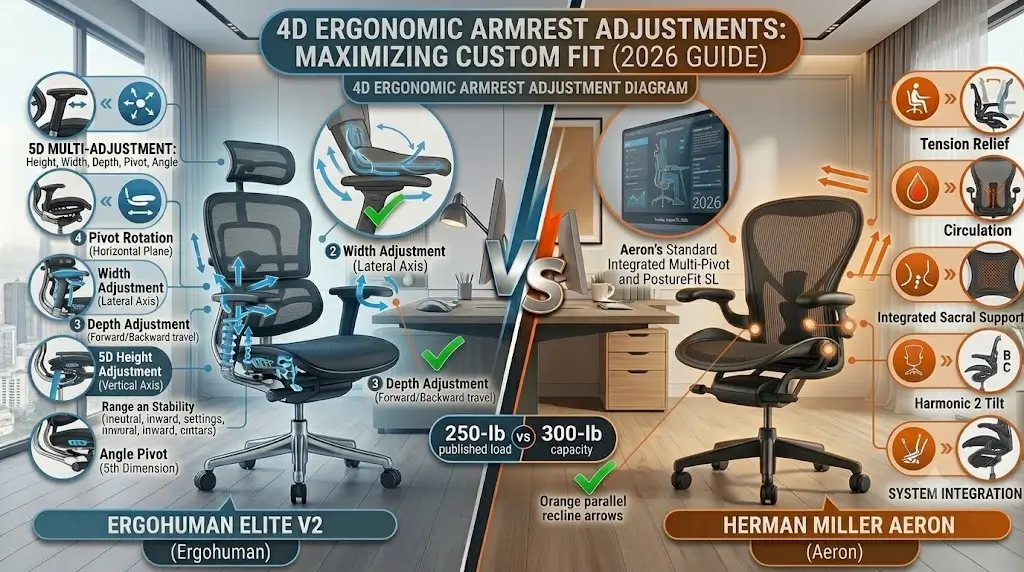
Multi-axis 4D mechanisms provide height, width, depth, and pivot movements to adapt to varying workstation tasks.
4D armrests typically provide four adjustment directions: height, width, depth, and pivot. These adjustments can make it easier to fit a chair to different body proportions and workstation configurations.
For example, the Steelcase Leap V2 review highlights how its 4D arm mechanism allows pads to telescope inward for typing, while our Branch Ergonomic Chair Pro review tests even more specialized 5D mechanics with pad tilt capabilities. In our comparative analysis of adjustable flagships, we examine how multidirectional armrests offer broad customization compared with less articulated systems.
What If Your Chair Has Fixed Armrests?
Stationary arm posts limit posture correction options when their factory height fails to match the desktop plane.
Fixed armrests can work when their geometry happens to match your body and desk. The problem is that you have fewer ways to correct a mismatch.
If you work in a compact home office or frequently hit shallow desks, explore our roundup of the best ergonomic desk chairs with flip-up arms for small spaces, where armrests can be folded out of the way entirely.
The 60-Second Armrest Positioning Test
Sequential fitting protocols verify shoulder relaxation, forearm support, and desk clearance within one minute of seating.
After installing a new chair or changing your desk, use this sequence before deciding whether the armrests fit:
- Sit normally: Sit fully back rather than on the front edge of the seat.
- Relax your shoulders: Do not shrug or force the shoulders downward.
- Set height: Bring the pads to your relaxed elbow/forearm position.
- Set width: Keep the elbows reasonably close to the torso.
- Set depth: Make sure the chair can approach the desk.
- Set pivot: Let the pads follow your forearms.
- Type: Confirm that your shoulders remain relaxed.
- Use the mouse: Check normal arm movement.
- Move: Change between typing, mouse use, reading, and resting.
- Recheck the desk: Make sure the armrests are not forcing you away from the keyboard.
Frequently Asked Questions About Ergonomic Chair Armrests
Ergonomics hardware evaluators address practical user inquiries regarding elbow heights, typing clearance, and 4D articulation.
Where should armrests be positioned on an ergonomic chair?
Position them so your shoulders remain relaxed, your elbows stay reasonably close to your torso, and the pads provide optional forearm support without interfering with keyboard or mouse movement.
Should armrests be level with your elbows?
They should be close to the natural height of your relaxed elbows or forearms. If your shoulders rise when your arms contact the pads, lower the armrests.
How high should armrests be for typing?
Set them high enough to provide useful support but low enough that your shoulders remain relaxed while your hands are positioned over the keyboard.
Should your elbows rest on the armrests while typing?
They can, but they do not need to remain on the pads continuously. Armrests should provide optional support without restricting natural arm movement.
Should armrests be close to your body?
They should be close enough for your elbows to remain reasonably near your torso without feeling squeezed. Armrests that are too wide can move the elbows unnecessarily outward.
Should armrests touch the desk?
They should not prevent the chair from moving close enough to the desk. If they hit the desktop, adjust the armrests or the desk relationship.
Bottom Line: Set Armrests Around Your Body and Workstation
Workstation setup principles require armrest positions to adapt around individual body proportions and desk dimensions.
The correct ergonomic chair armrest position is the one that provides useful support without forcing your shoulders, elbows, forearms, or torso into an unnatural working position.
Start with height. Keep the shoulders relaxed and bring the pads to the natural height of your elbows or forearms. Then adjust width so your elbows remain reasonably close to your body, depth so the pads do not prevent you from reaching the desk, and pivot so the support follows your actual forearm position.
Relax the shoulders → position the elbows naturally → adjust armrest height → set width → set depth → test the keyboard → test the mouse → verify desk clearance.
