
Why Does My Lower Back Hurt in an Ergonomic Chair?
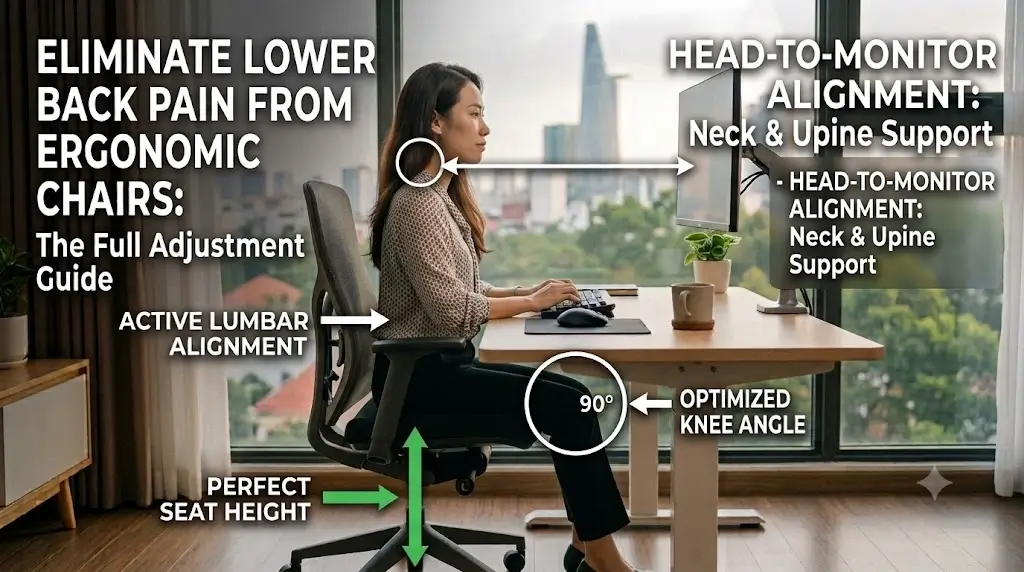
If your lower back hurts in an ergonomic chair, the chair is not necessarily defective and you are not necessarily sitting incorrectly. The more useful question is which part of the chair or workstation is creating the problem.
Common causes include lumbar support that is too high or too aggressive, an unsuitable seat depth, incorrect seat height, excessive recline resistance, armrests that interfere with the desk, or a workstation that repeatedly pulls you forward.
Quick Reference Specification: Ergonomic Mismatch Diagnostic Matrix
| Symptom Trigger | Biomechanical Mechanism | Corrective Calibration Target |
|---|---|---|
| Immediate Focal Ache | Hyper-lordotic lumbar over-extension | Retract lumbar depth dial until pad contacts curve without focal point push |
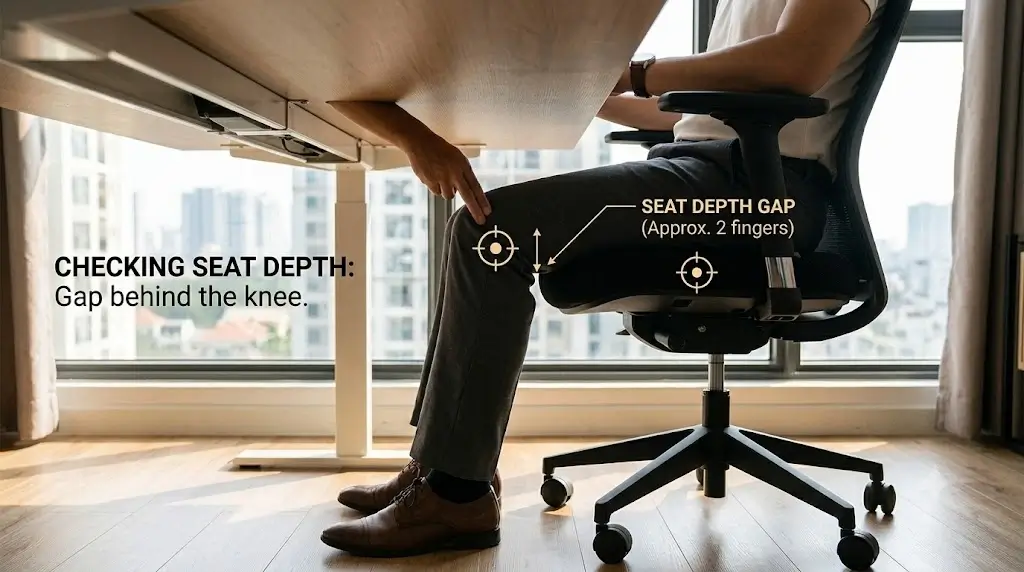
| Delayed Sacral Slouching | Popliteal thigh obstruction / Excessive seat depth | Shorten seat pan slider to restore 2–3 finger clearance behind knees |
| Typing-Induced Spasms | Upper torso forward-lean / Extended reach | Pull keyboard within 10 inches; lower desk plane to relaxed elbow height |
| Recline Back Pinching | Rigid static 90° spinal compression | Unlock tilt mechanism to 100°–110° and reduce under-seat recline tension |
| Sciatic Leg Tingling | Ischial & femoral vascular pressure | Lower seat cylinder until feet rest flat and hips elevate 1 inch above knees |
If your back hurts immediately when you lean against the chair, check lumbar depth and height first. If discomfort appears after 30–60 minutes, investigate seat depth, static posture and workstation reach. If it happens mainly while typing, check desk height, keyboard distance and armrests.
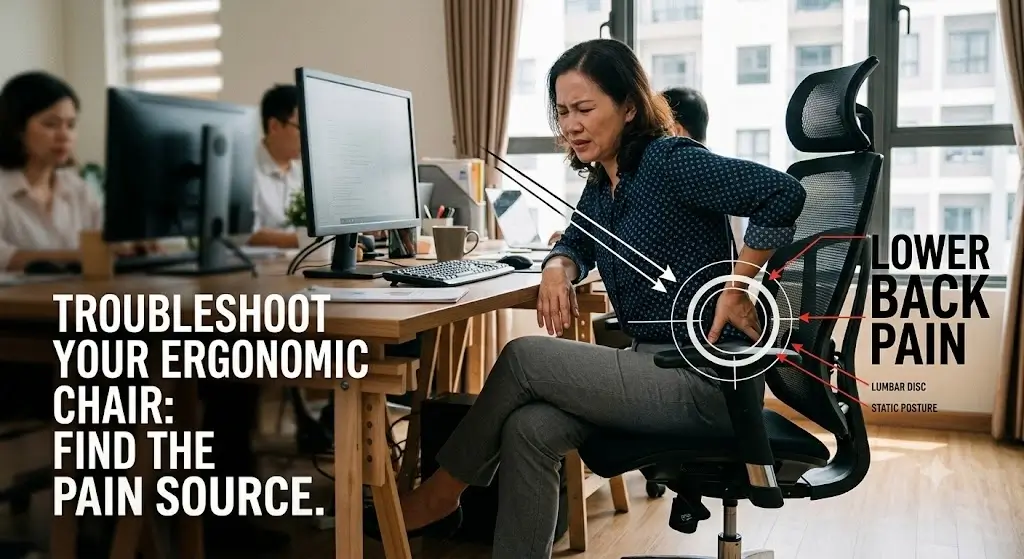
Find the Likely Cause by When Your Back Starts Hurting
Symptom onset timelines isolate specific mechanical failures between aggressive lumbar tension and delayed seat depth fatigue.
The timing and circumstances of discomfort provide useful troubleshooting information. This is not a medical diagnostic system; it is a way to determine which workstation variable deserves attention first.
Pain or pressure immediately
If discomfort appears as soon as your back contacts the chair, inspect the lumbar mechanism and backrest contour.
First test: reduce lumbar depth and adjust lumbar height in small increments.
Discomfort after 30–60 minutes
This pattern often makes seat depth, static sitting and workstation reach worth checking.
First test: confirm you can sit fully back without pressure behind the knees.
Discomfort while typing
The chair may not be the only issue. Check desk height, keyboard distance, mouse position and armrests.
First test: move the keyboard and mouse closer.
Discomfort only when reclining
Inspect the interaction between lumbar support, backrest shape and recline mechanism.
First test: reduce lumbar depth and test a smaller recline.
Discomfort after switching chairs
A different seat depth, cushion firmness or lumbar contour can substantially change your sitting position.
First test: reset every adjustment rather than copying settings from the previous chair.
Discomfort regardless of settings
If no reasonable configuration works, the chair’s dimensions may simply be a poor match for your body.
First test: identify which dimension remains incompatible.
10 Reasons Your Lower Back Hurts in an Ergonomic Chair
Biomechanical audits identify aggressive lumbar curvature and excessive seat depth as the primary triggers of office chair back pain.
| Cause | Typical clue | First adjustment |
|---|---|---|
| Lumbar support too deep | Strong pressure against a small area | Reduce lumbar depth |
| Lumbar support too high | Pressure feels too high on the back | Lower the support |
| Seat too deep | Cannot comfortably sit fully back | Reduce seat depth |
| Seat too high | Feet lack stable support | Lower the chair or use foot support |
| Seat too low | Knees sit substantially higher than expected | Raise the seat if desk height permits |
| Backrest too upright | You feel forced to hold your torso upright | Test a modest recline |
| Recline tension too high | Backrest resists normal movement | Reduce tension gradually |
| Armrests poorly positioned | Shoulders tense or desk access is restricted | Adjust height and position |
| Desk or keyboard too far away | You repeatedly lean forward | Bring input devices closer |
| Chair geometry does not fit | No adjustment produces a sustainable setup | Evaluate another chair size or design |
Lumbar Support Issues
Excessive lumbar dial protrusion forces the spine into unnatural hyper-lordosis and induces local paraspinal muscle cramping.
1. Your Lumbar Support May Be Too Aggressive
Lumbar support is intended to provide useful contact with the lower back. It does not need to produce strong pressure to be effective. Learn how dynamic systems automatically regulate tension in our guide explaining what is dynamic lumbar support.
A common adjustment mistake is moving the lumbar mechanism toward its maximum depth because “more support” sounds better. For some users, that simply creates a concentrated pressure point. If your chair has a rigid unyielding lumbar bar, pairing it with an ergonomic insert provides a gentler contour.
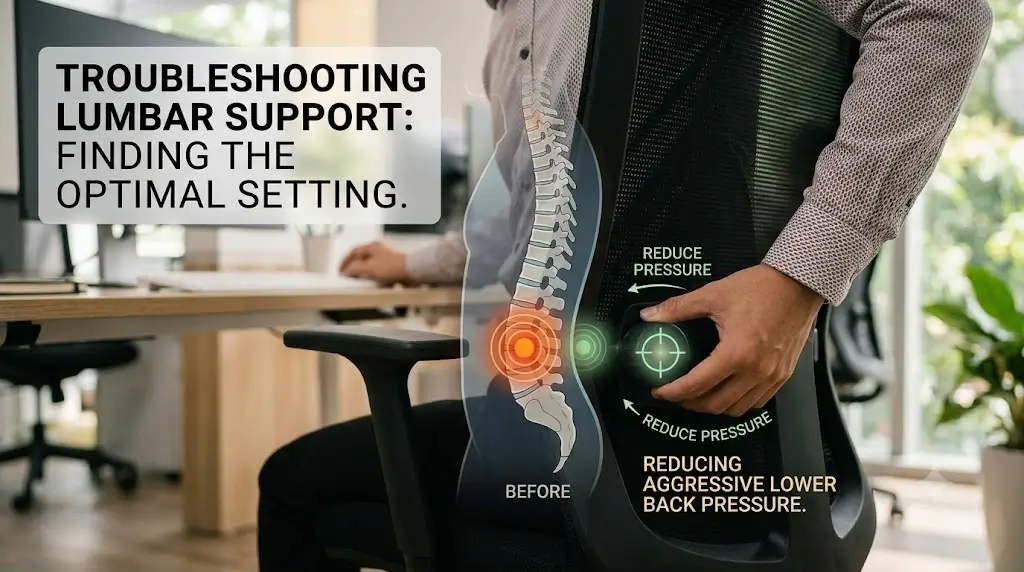
- Sit fully back against the backrest.
- Relax your shoulders and avoid deliberately arching your back.
- Reduce lumbar depth.
- Reassess the contact area.
- Only then adjust lumbar height.
2. Your Lumbar Support May Be Too High
Lumbar support that sits too high can push into an area that does not feel comfortable for you. This is especially relevant when a chair has a vertically adjustable lumbar pad.
Seat Dimension Mismatches
Popliteal clearance deficits prevent sitters from contacting the lumbar bolster and trigger habitual forward pelvis slouching.
3. Your Seat Depth May Be Wrong
Seat depth is one of the most important measurements in chair fit because it determines how easily you can use the backrest while keeping your legs comfortable.
A seat that is too deep can make you choose between two poor options: sit fully back and tolerate pressure behind the knees, or slide forward and lose effective back support. To protect the sciatic nerve from compression behind the knees, follow our clinical guide on how to sit with sciatica at a desk.
4. Your Seat Height May Be Wrong
Seat height affects your feet, knees, hips, and your relationship with the desk. Understanding the proper ergonomic chair height for a desk setup helps prevent excessive pressure under the thighs and lower spine.
Posture & Recline Settings
Spinal biomechanics show that locking backrests at rigid ninety-degree angles elevates intra-discal pressure across L4–L5 vertebrae.
5. You May Be Sitting Too Upright
Good ergonomic seating does not require holding the torso perfectly vertical throughout the day. A supported, mildly reclined position (approx. 100° to 110°) can be more comfortable than locking yourself into an extremely upright 90° posture.
6. Recline Tension May Be Too High
Recline tension determines how much resistance you feel when moving backward. If set too tight, you end up fighting the chair.
7. Your Armrests May Be Changing Your Lower-Back Position
Excessive armrest height elevates the shoulder girdle and breaks backrest lumbar contact by blocking desk entry.
Armrests can influence the entire workstation because they affect shoulder position and how close the chair can move toward the desk. For a complete calibration sequence, see our setup guide on how armrests should be positioned on an ergonomic chair.
Workstation & Habit Factors
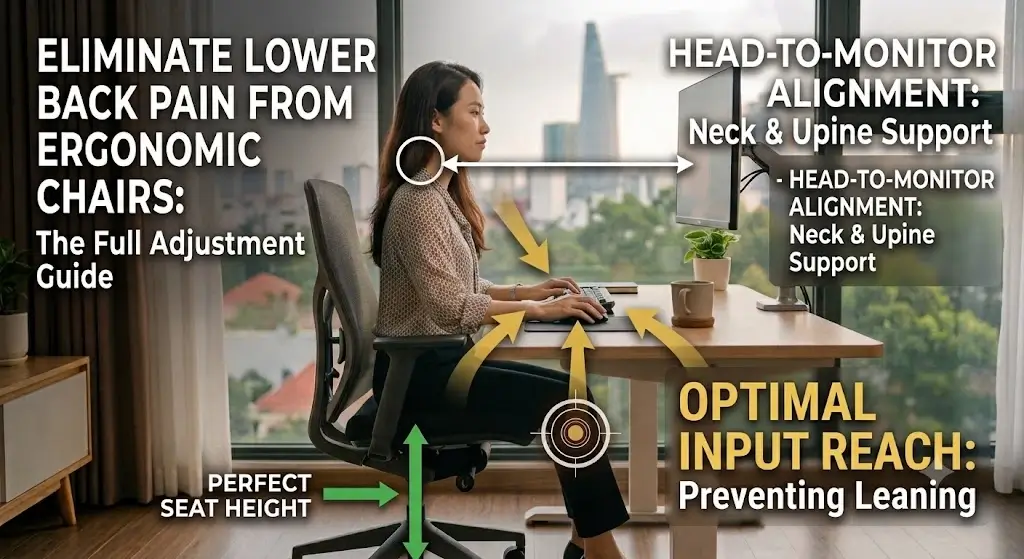
Excessive peripheral distance pulls the torso forward into kyphotic slouching and leaves the lumbar bolster unsupported.
8. The Desk May Be Causing the Problem
One of the biggest ergonomic troubleshooting mistakes is blaming the chair when the desk is forcing the body into the wrong position. If the keyboard is too far away, you repeatedly lean forward, leaving the backrest behind. Check your seated elbow height against desk dimensions to configure your exact desk height.
9. You May Be Sliding Forward
Sliding forward is often a symptom rather than the original problem. You may slide forward because the seat is too deep, the lumbar support is uncomfortable, or the seat pan foam has flattened out. If your chair base has become firm and bottomed out, adding an orthopedic pad restores pelvic elevation and prevents slouching.
The 15-Minute Ergonomic Chair Troubleshooting Protocol
Systematic ten-stage troubleshooting protocols isolate seated height and seat pan sliders before adjusting backrest lumbar dials.
Use this sequence instead of randomly turning every adjustment knob. Following a step-by-step ergonomic chair adjustment guide ensures each setting builds on a solid base:
10. The Chair May Not Fit Your Body (Keep or Replace?)
Physical dimension mismatches require chair replacement when factory slider travels fail to clear user popliteal limits.
A chair can have multiple adjustment mechanisms and still be a poor fit if its basic geometry falls outside the range you need. When fine-tuning doesn’t relieve strain, reviewing the best ergonomic office chairs for lower back pain can provide models tailored for active lumbar alignment. Before replacing an ergonomic chair, identify the adjustment that fails:
| If this is the problem… | Look for this in another chair |
|---|---|
| Seat is too deep | Adjustable seat depth slider or shorter seat geometry |
| Lumbar support is too aggressive | Adjustable lumbar depth or less pronounced back contour |
| Minimum seat height is too high | A lower seat-height cylinder range |
| Armrests interfere with desk | 4D / 3D lower or backward-sliding armrests |
| Backrest feels restrictive | A more flexible dynamic recline mechanism |
| No setting works | A completely different chair size or frame design |
Frequently Asked Questions
Ergonomics hardware evaluators address critical consumer questions regarding seat depth friction, lumbar protrusion, and acute posture strain.
Why does my lower back hurt in an ergonomic chair?
The most common causes are excessive lumbar pressure, incorrect lumbar height, unsuitable seat depth, incorrect seat height, an overly upright backrest, poorly positioned armrests, and a desk setup that encourages forward reaching.
Can an ergonomic chair actually cause lower-back pain?
Yes. Any chair can contribute to discomfort when its dimensions or settings do not suit the user. The term ergonomic does not guarantee a universal fit.
Why does my lower back hurt immediately when I sit against the chair?
Immediate discomfort often makes the lumbar mechanism or backrest contour worth checking first. Reduce lumbar depth and test the lumbar height in small increments.
Why does my back hurt only after sitting for an hour?
Discomfort that develops after prolonged sitting can be associated with seat depth, workstation reach, static posture or a setup that becomes difficult to maintain over time.
Can a chair that is too deep cause lower-back discomfort?
Yes. A deep seat can make it difficult to sit fully back against the backrest while keeping the legs comfortable, which can encourage sliding forward or leaning toward the desk.
Should I increase lumbar support if my lower back hurts?
Not automatically. If the lumbar mechanism already creates strong pressure, increasing it may make the problem worse. Test lower depth first and adjust height gradually.
Bottom Line: Fix the Cause, Not Just the Lumbar Support
Workstation troubleshooting resolves lower-back pain by systematically balancing seat depth and desk reach alongside backrest adjustments.
Lower-back discomfort in an ergonomic chair is usually a fit and workstation interaction problem, not simply a question of whether the chair has enough lumbar support. Start with the variables that have the greatest effect: seat depth, lumbar depth, lumbar height, seat height, recline and desk reach.
